It is not very often I share a third-party video, but this one from David Bergman (for Adorama TV) on why Dynamic Range is not nearly as important as most people think just hits the nail on the head. Ask yourself, when was the last time you saw a really great photograph with 12 or more stops of dynamic range? The answer is you probably haven’t, and the reason is that most great photographs actually have quite a limited dynamic range because they are taken in soft light. Just as an aside, I have long said that we should not measure cameras by their dynamic range but instead by their ISO performance (signal-to-noise ratio).
Contrary to some beliefs, dynamic range and signal-to-noise ratio are not the same, although both measure camera performance in decibels and are closely related. Dynamic range is the ratio between the maximum signal a sensor can handle and its lowest detectable signal (noise floor), while signal-to-noise measures signal quality at any given specific intensity.
In layman’s terms, dynamic range measures the span between the brightest highlights and darkest shadows a camera can capture in a single exposure without losing detail (clipping). In effect, it defines the camera’s ability to handle high-contrast scenes. The signal-to-noise ratio measures the ratio of signal strength to noise at a specific brightness level. SNR is highest at full-scale output and decreases in lower light.
There are some important key differences between the two. Dynamic Range describes the range of intensity, while Signal to noise describes the quality of the signal at one point. A camera with a high dynamic range may still have poor signal-to-noise if the noise floor is high or high SNR with low dynamic range.
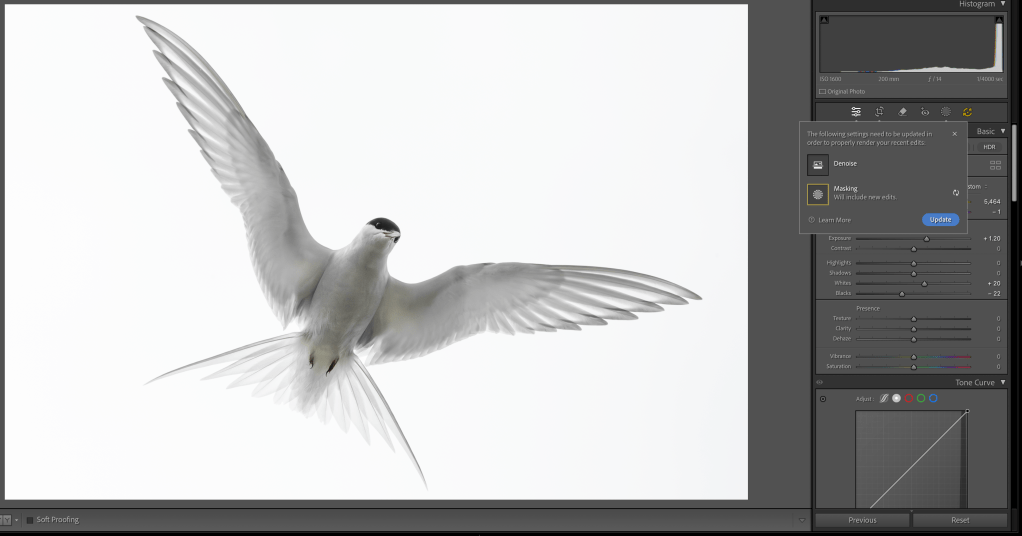
The order of operations in Adobe Lightroom’s Develop module has long been misunderstood by many. Historically, it has not really mattered all that much in which order you make adjustments in the Develop module, as Lightroom would re-order the adjustments into its preferred order when rendering a finished file. With the adjustments being parametric (simply a list of instructions for how to adjust the image) there was never much concern over where you started or finished with your edit workflow. It has always been good practice to work from top to bottom in the Develop module, but now with the introduction of AI editing, there is a preferred workflow as noted below:
Open and edit a photo using AI-powered features like Denoise, Masking, Lens Blur, Generative Remove, etc.
When a photo has AI-powered edit settings, the AI Edit Status button is turned on. The button will have a yellow highlight when some AI settings need to be updated to render your photo properly.
Select AI Edit Status to view the details of all the edits made with AI-powered features.
Select Refresh to update only the corresponding AI setting. It’s recommended to review the results before updating subsequent AI settings in the list.
AI Edit Status is shown with an Update All button.
Select Update All to update all highlighted AI settings in top-down order.
Note: The AI Edit Status button is available on Adobe Camera Raw, Lightroom on desktop, Lightroom Classic, Lightroom on mobile, and Lightroom on the web. Follow the mentioned workflow to access the AI Edit Status button in your preferred Lightroom surface. Order of AI edit operations – The order of operations also applies to Lightroom on desktop and Lightroom Classic. The recommended order of operations to avoid unexpected results and achieve the best output is as follows:
HDR
Denoise, Raw Details, Super Resolution
Reflections Removal
Distracting People Removal
Generative Expand (Currently available only in Adobe Camera Raw as Tech Preview)
Generative Remove, Content-Aware Remove, Heal, and Clone
Since the voluntary administration and closing of the AIPP (Australian Institute of Professional Photography), I have steered clear of the new Australian Photographic Prize Award. Like a phoenix from the ashes, the Australian Photographic Prize arose as a direct result of ex-AIPP member’s desires to maintain a high-level photographic (both print and digital) competition in Australia for both professionals and amateurs (after the Australian Professional Photography Awards that were an inseparable part of the AIPP became no more). I chose to avoid (not boycott) the Australian Photographic Prize (APP) in its first two years since I was on the board of directors that took part in the decision to shut down the AIPP via voluntary wind-up due to predicted and inevitable insolvency (based on projected cash flows). At the time, this was the fiscally responsible decision (although much has been touted otherwise), and I still believe this to be the case as a director who was privy to the full picture of the organization’s finances. As of today, there still remains a small chance the AIPP may be re-born – pending a Supreme Court decision on what is to become of the remaining surplus funds. I have a feeling we have not seen the end of the AIPP, and it may yet re-emerge in one form or another.
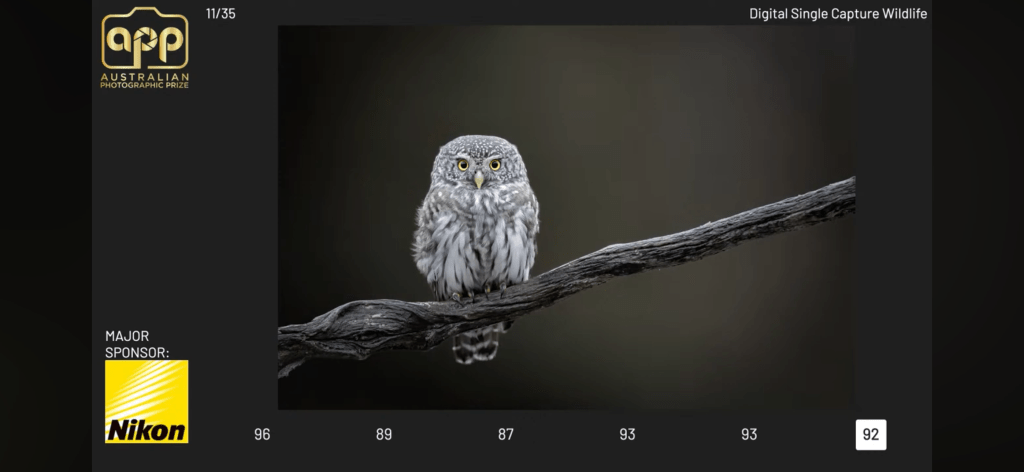
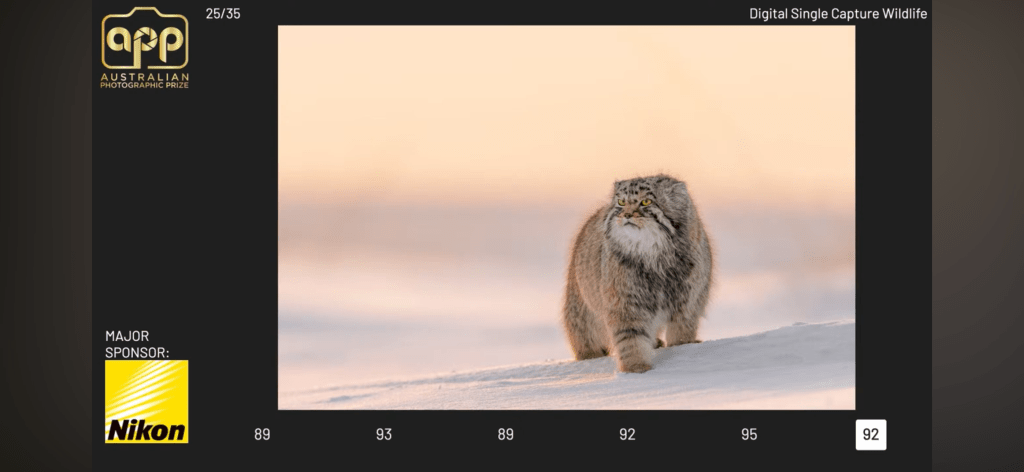
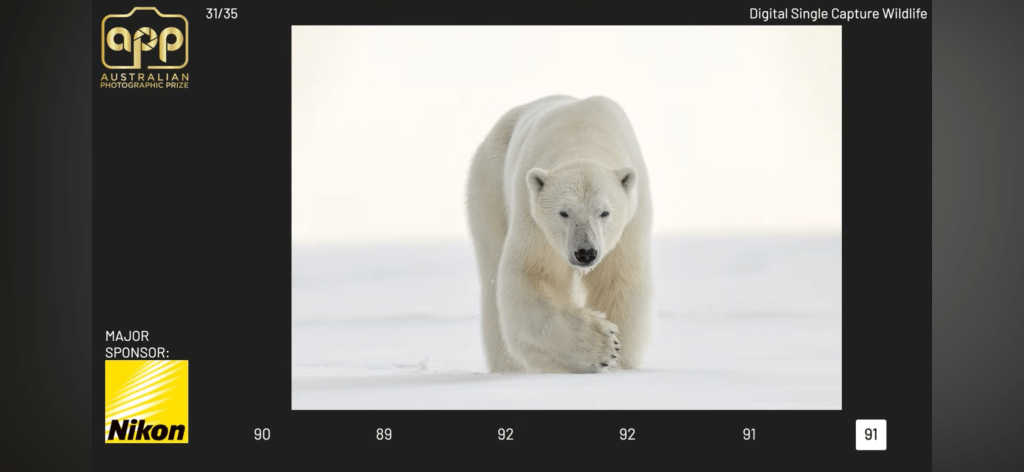
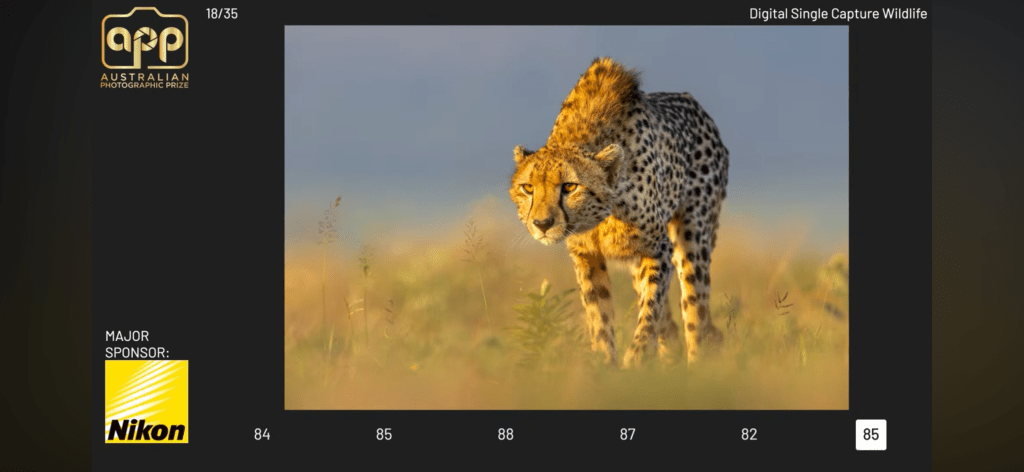
This year, I decided to put the closure of the AIPP behind me (since it felt like the dust had significantly settled) and enter the single-image Nature category of the Australian Photographic Prize. The Nature category was judged yesterday, and I just caught up on the preliminary results on You-Tube during some downtime here in Mongolia (on my summer workshop for Pallas Cats). Much like the deceased APPA awards, the APP awards are judged by a team of five professional photographers on a moderated panel. Of the five photographs I chose to enter this year, all five made the final round of judging (top 35 entered images). Three of the five have gone to receive highly coveted Gold Awards, and the remaining two racked up Silver with Distinction awards, with one photograph (of the two back-lit Cheetahs) being a single point off a fourth Gold award. Screenshots of the judge’s scores and images are included below. You can also watch the recorded live-steam for the Single Image Nature category below. The overall winner of the category will be announced in the next few days.
Addendum: Since this post, I have been notified that two of my photographs (the owl and Pallas cat) were in the final round of judging as grand finalist images.
AI-generated images are literally swamping social media platforms. Many of the Nature photography groups on Facebook I have historically been a part of are now drowning in A.I generated images as surrepticious users attempt to outdo each other in a seemingly never-ending quest for likes and views. Disclosure does not appear anywhere on most posters radar, and the intent is very clearly to deceive and fool the viewer. These posts are often immediately apparent to the trained eye; but even an untrained eye can quickly check the posters photo album to see that they have nothing else even close to what they are claiming is their photograph. It is a very sad run-away train of one-up manship that is significantly blurring the lines between Nature photography and “computer-generated art” (and I use the word ‘art’ loosely). Where will it end? I have no idea, but at least in the Nature space, the use of generative A.I tools appears to be highly destructive to accurate depictions and documentation of Nature. Or, at the very least, it causes significant confusion about what is real in the Nature space.
Since the rise of generative A.I tools, I have been receiving more correspondence asking if I use any A.I techniques to enhance my photographs. The answer is NO. A long time ago I published an ethics statement on my website HERE fully disclosing how I approach processing my photographs. I have now updated this to include the exclusion of A.I generative tools.
ETHICS AND POST-PRODUCTION
All of the photographs on this website are single-image captures without HDR (High Dynamic Range) or multi-image compositing techniques. No focus stacking or blending of multiple exposures has been used, and there are no overlayed textures or dropped-in skies or foregrounds. Panoramas do include stitched images.
I learned the craft of photography by shooting 35mm transparencies (primarily Fujichrome Provia 100 and Velvia 50). Transparencies had very little exposure latitude, and outside of a third of a stop on either side of a correct exposure, the slide was either over or under-exposed and destined for the trash. I learned the hard way that it was critical to get my exposures correct in camera and this is something I still try very hard to achieve today shooting digitally. I use graduated neutral density filters in the field extensively in my photography to help tame the dynamic range found in Nature. I bias my exposures to the right (ETTR) wherever possible to try and capture the most information possible in my RAW file. The RAW file on the right was overexposed by one stop (without clipping the highlights) in order to capture more data. The exposure was then corrected during post-production in Adobe Lightroom.
All of the photographs on this website were shot with Canon digital cameras in RAW and post-processed in Adobe Lightroom. Adjustments include White Balance, Color and Tone, Capture Sharpening, and equivalent techniques to darkroom dodging and burning.
Any excessive noise or grain from high ISO captures is treated in Lightroom or other noise reduction programs with subtle adjustments of the Noise Sliders. Any sensor dust spots are removed in post production – but that is the extent of any digital cloning or manipulation.
Post-processing is utilised to faithfully reproduce the natural colours and light captured in the field. Never to create something that wasn’t there. Additionally, no artificial intelligence (AI) generative technologies or tools have been used to create or enhance these photographs. My work remains true to the traditional craft of photography, ensuring authenticity and integrity in every image. I want the viewer to enjoy the majesty and beauty of Nature as it appears on our mother Earth.


 www.WILDNATUREPHOTOTRAVEL.com