The order of operations in Adobe Lightroom’s Develop module has long been misunderstood by many. Historically, it has not really mattered all that much in which order you make adjustments in the Develop module, as Lightroom would re-order the adjustments into its preferred order when rendering a finished file. With the adjustments being parametric (simply a list of instructions for how to adjust the image) there was never much concern over where you started or finished with your edit workflow. It has always been good practice to work from top to bottom in the Develop module, but now with the introduction of AI editing, there is a preferred workflow as noted below:
Open and edit a photo using AI-powered features like Denoise, Masking, Lens Blur, Generative Remove, etc.
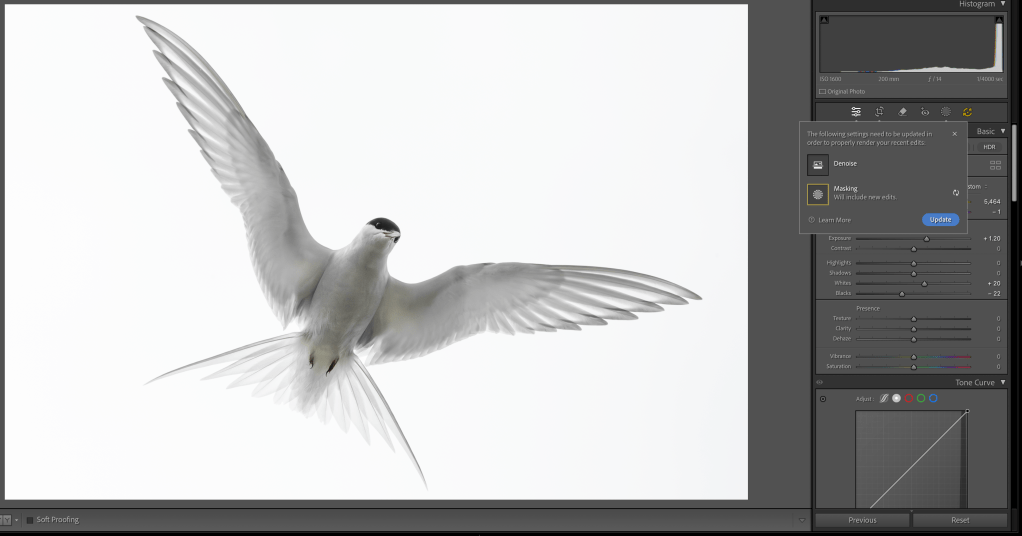
When a photo has AI-powered edit settings, the AI Edit Status button is turned on. The button will have a yellow highlight when some AI settings need to be updated to render your photo properly.
Select AI Edit Status to view the details of all the edits made with AI-powered features.
Select Refresh to update only the corresponding AI setting. It’s recommended to review the results before updating subsequent AI settings in the list.
AI Edit Status is shown with an Update All button.
Select Update All to update all highlighted AI settings in top-down order.
Note: The AI Edit Status button is available on Adobe Camera Raw, Lightroom on desktop, Lightroom Classic, Lightroom on mobile, and Lightroom on the web. Follow the mentioned workflow to access the AI Edit Status button in your preferred Lightroom surface. Order of AI edit operations – The order of operations also applies to Lightroom on desktop and Lightroom Classic. The recommended order of operations to avoid unexpected results and achieve the best output is as follows:
HDR
Denoise, Raw Details, Super Resolution
Reflections Removal
Distracting People Removal
Generative Expand (Currently available only in Adobe Camera Raw as Tech Preview)
Generative Remove, Content-Aware Remove, Heal, and Clone
Wildlife photography is one of the most challenging and rewarding genres of Nature photography. Creating powerful and emotive wildlife photographs demands a deep understanding of animal behaviour, patience, and the ability to adapt to unpredictable environments. But beyond all that, there is one factor that determines whether you capture the decisive moment or miss it completely—how well you know your camera.
Over the decades I have been working as a professional Nature photographer, I’ve had the privilege of photographing in some of the planet’s most remote and extreme environments, from the frozen landscapes of Antarctica to the rugged and unforgiving Arctic tundra of Svalbard and Greenland. In these places, conditions can be brutally harsh, wildlife is unpredictable, and opportunities are fleeting. In such environments, there is no time to fumble with settings or second-guess technical choices. Mastery of your camera is the foundation that allows you to focus on composition, storytelling, and, most importantly, the wildlife itself.
In this article, I’ll discuss why knowing your camera inside and out is critical in wildlife photography, the key settings and features you must master, and how this knowledge translates into better images in the field. Even if you don’t shoot wildlife, this article will help you become a better photographer. It may even save you from an expensive purchase and from the common misconception that a new camera is the vehicle to better photography. In point of fact, a new camera is often detrimental to your photography in the short term as you have to learn the new tool.
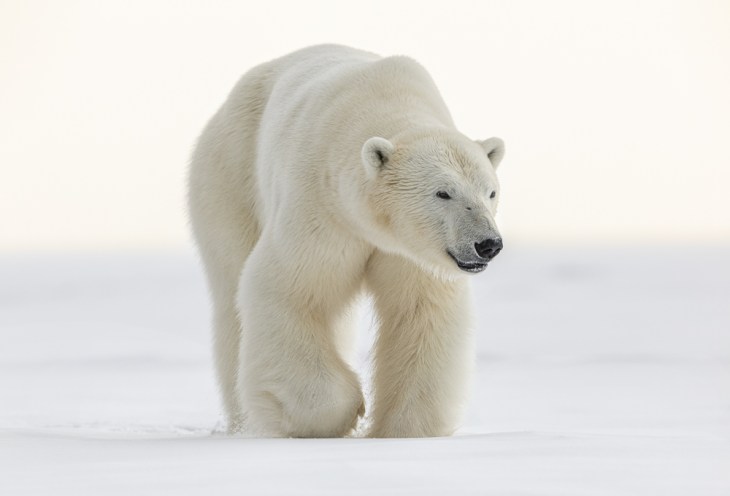
The Unforgiving Nature of Wildlife Photography – Seconds Make the Difference – Wildlife photography is about capturing fleeting, decisive moments. Whether it’s an Arctic fox pouncing on prey, a polar bear emerging from the ice and fog, or a sea eagle diving for fish, these moments are unpredictable and often last no more than a split second or two. If you’re not intimately familiar with your camera, you risk missing the shot altogether. In fact, unless you have complete technical mastery of your camera, including muscle memory for all of its controls, you will almost certainly miss it.
I’ve repeatedly seen photographers in the field hesitate because they needed to adjust their autofocus settings, change their exposure compensation or otherwise make a technical adjustment. By the time they’ve made the adjustment, the moment is gone and the photograph has been missed. Wildlife doesn’t wait for you to be ready—you must be ready at all times.
Harsh and Unpredictable Environments – In many of the locations I photograph, the environment itself is a formidable challenge. Freezing temperatures in the Arctic can drain batteries quickly, gloves make it difficult to adjust dials, and snow can easily confuse a camera’s metering system. In such conditions, knowing how to operate your camera by feel—without having to look at buttons or menus—is essential. Even if you take the harsh environment out of the equation knowing how to operate your camera intuitively with muscle memory will improve your photography; regardless of the environment.
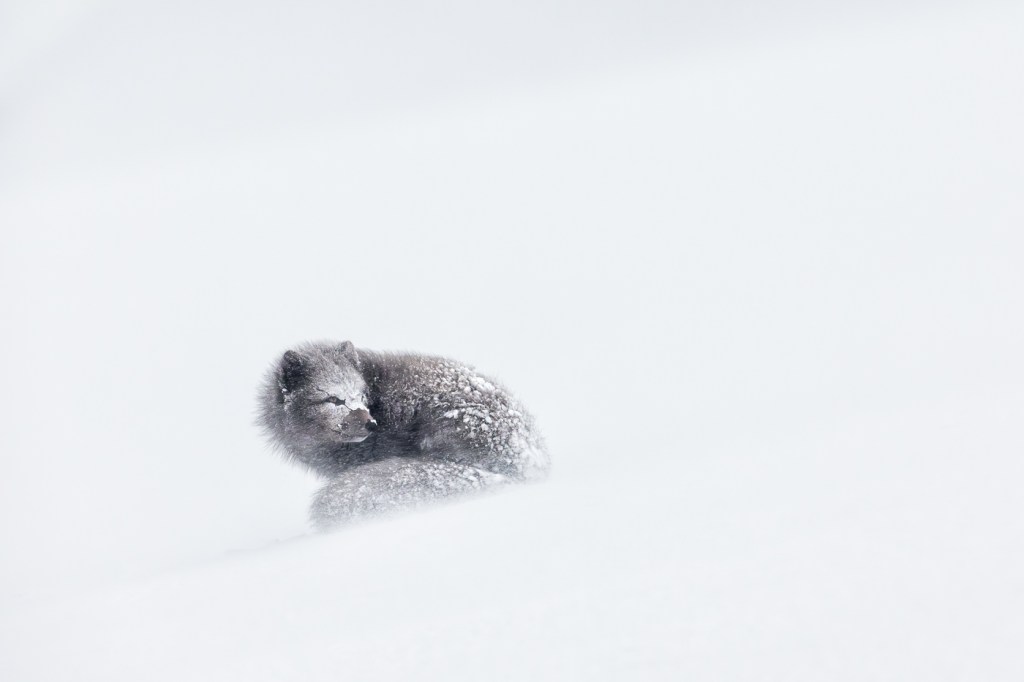
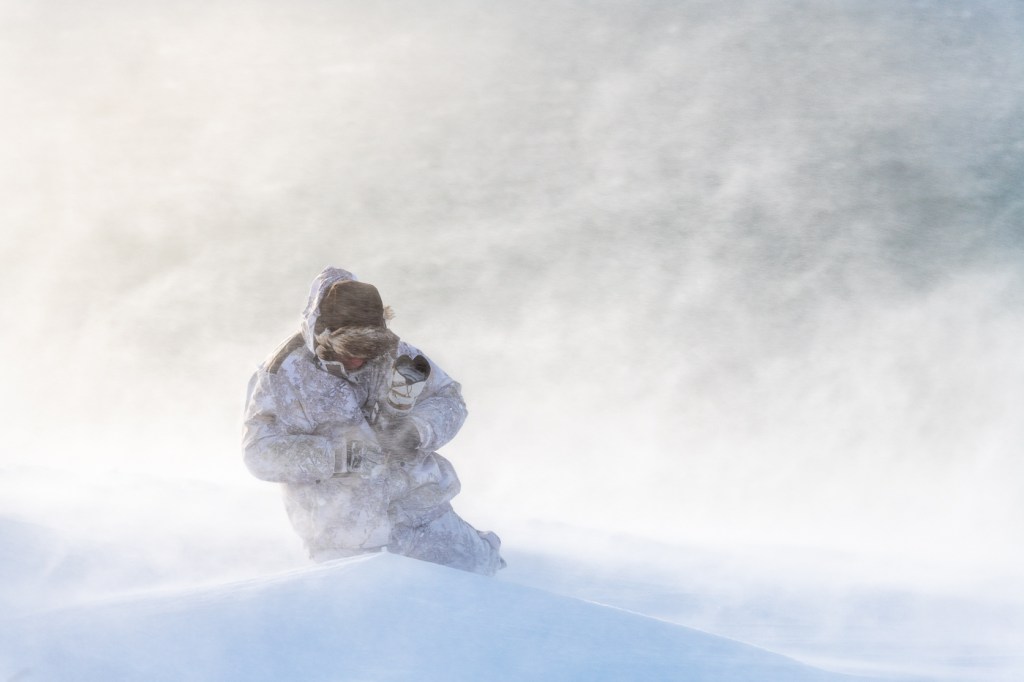
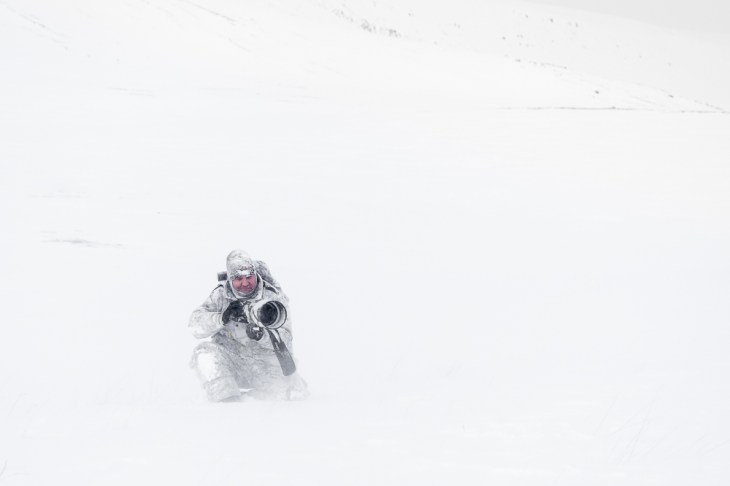
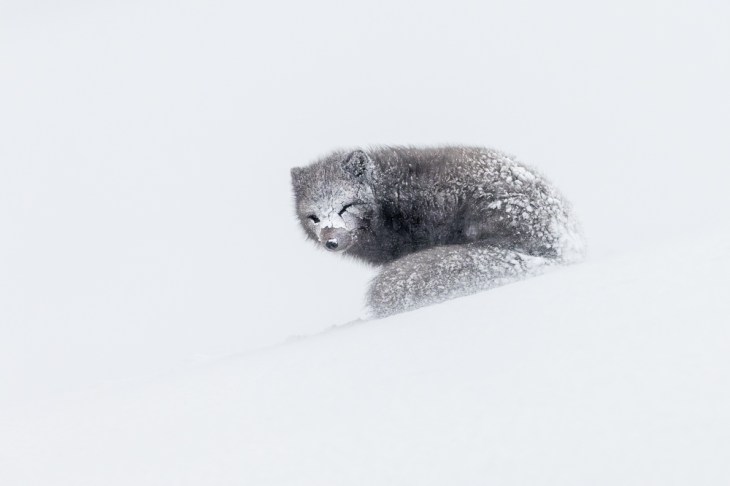
When I’m photographing Arctic foxes in Iceland’s Hornstrandir Nature Reserve, for example, I might be kneeling or laying down in the snow with high winds and blowing ice, tracking a fast-moving subject. In such situations, I cannot afford to be distracted by my camera. Everything must be second nature. The second I have to look away or stop and think about what I am doing from a technical perspective is the moment I stop being an artist and start being a technician.
Essential Camera Skills Every Wildlife Photographer Must Master – Autofocus Mastery – Autofocus (AF) performance can make or break a wildlife image. Understanding how your camera’s AF system works—its various modes, tracking capabilities, and limitations—is critical.
For wildlife, I typically rely on continuous autofocus (AI Servo) and use a combination of single-point and zone AF modes depending on the subject. For fast-moving subjects, animal eye-tracking autofocus (available on newer mirrorless cameras) is a game-changer. However, not all cameras perform equally well in different settings, and understanding your camera’s strengths and weaknesses helps you choose the right settings in the moment. This can only come with experience.
When photographing Arctic foxes, I frequently switch between single-point AF for precise focus (when the fox is stationary or moving slowly) and zone AF for tracking eye and movement (when it’s running or otherwise active). Knowing when and how to make these adjustments without taking my eye off the viewfinder is a skill that comes with practice. Once you master this ability you can free your brain up to focus (pardon the pun) on composition.
Exposure Control in Extreme Conditions – Wildlife photography often involves high-contrast environments. In the Arctic, for example, bright snow can fool a camera’s metering system, leading to underexposed subjects. Conversely, dark fur on an Arctic fox or polar bear in shadowed ice can result in overexposure.
Mastering exposure compensation and understanding histograms is crucial. I always shoot in Manual mode, allowing me to control shutter speed and aperture with an appropriate ISO setting for the light. Since I shoot in Manual I don’t need to dial in exposure compensation to ensure my subject is properly exposed. I know from experience, that in a bright white snow environment I am going to have to overexpose approximately two stops to ensure my whites are white (and not grey) and that my histogram is is biased to the right (for optimal signal to noise). To accomplish this, I simply shoot a frame, check the histogram and make any required adjustments before the wildlife comes into play.
Shutter Speed and Motion – One of the most common mistakes I see in wildlife photography (after underexposure) is using an inadequate shutter speed. A slow shutter can result in motion blur, rendering an otherwise perfect moment unusable. Of course, there are times when we want to introduce motion blur into a photograph to convey a feeling of movement. Other times, we want to ensure a sharp subject. As a general rule: • Fast-moving subjects (birds in flight, running mammals): 1/1250s or faster • General wildlife (walking animals, standing birds): 1/500s • Slow or stationary subjects: 1/250s or lower, depending on focal length and speed of subject
Keep in mind the above are general guidelines only and you should choose an appropriate shutter speed to your subject. This is also where knowing your subject can greatly assist you.
One technique to try is using Auto ISO with a minimum shutter speed. This ensures you will maintain a sharp image while allowing flexibility in exposure settings. If you try this I recommend setting a ceiling for the ISO so that you control the final noise in your files.
Understanding Custom Buttons and Shortcuts – Modern cameras offer extensive customisation options. I encourage every wildlife photographer to set up their camera for quick access to critical settings. For example: • Back-button focus: Separates focusing from the shutter button for better control of auto focus and metering. • Custom buttons for AF mode switching: Quickly toggling between single-point and zone AF is essential. If you happen to also shoot a Canon EOS R1 then you can achieve this with just the one button on the back of the camera. • Custom mode settings: Saving different exposure settings (e.g., one for action, one for static subjects) allows rapid switching.
By configuring my camera to my workflow, I eliminate unnecessary adjustments and can react instantly in the field.
Translating Camera Knowledge into Better Wildlife Images – Confidence and Speed in the Field – When you know your camera inside and out, you develop the confidence to focus on composition and storytelling rather than technical details. You will free up your brain to become an artist in the field, instead of a technician.
For example, during my Arctic fox workshops, I often find myself tracking a fox as it moves across a snowy landscape. Because I don’t have to think about my settings, I can concentrate on anticipating the fox’s next move, positioning myself for the best angle, and ensuring a compelling background. I am also ready to capture the decisive moment if the fox does something unpredictable.
Better Use of Light and Composition – Technical mastery also allows for more creative freedom. Instead of struggling with settings, you can focus on utilising the best light, framing your subject effectively, and telling a more powerful visual story.
A well-executed image isn’t just about sharpness—it’s about emotion, behaviour, and the relationship between the subject and its environment. Knowing your camera allows you to capture these elements with precision. Remember, we are visual storytellers. We want to tell the story of the wildlife in the environment in which it lives. Keep this in the forefront of your thinking and I promise you your photography of wildlife will improve.
How to Improve Your Camera Mastery – Practice Before You Travel – Before heading into the field, spend time practicing with your camera in controlled conditions. Learn its menus, test autofocus performance, and memorize button placements so you can operate it without looking. Make sure you master the tool (the camera) so that you can take full advantage of all of its capabilities in the field without disengaging yourself from the subject in front of you.
Simulate Real-World Conditions – If you’re preparing for an Arctic or cold weather experience, practice shooting in the cold with gloves on. If you’ll be photographing birds in flight, visit a local park and test your tracking skills. The more you train in realistic conditions, the more prepared you’ll be. When I was teaching myself how to photograph birds in flight I would go down to my local beach on the weekend with my camera and photograph seagulls for practice.
Learn from Mistakes – Every missed shot is an opportunity to improve. Analyse your images to identify technical errors and refine your approach. Continuous learning is key to mastering wildlife photography. Remember to also learn about your subject. The more you know about the wildlife you are choosing to photograph the more you will be able to predict its behaviour and the more likely you are to capture decisive and powerful photographs that fully convey the emotion of being in the field.
Final Thoughts – In wildlife photography, knowing your camera is just as important as knowing your subject. The difference between a missed opportunity and a breathtaking image often comes down to how quickly and instinctively you can adjust your settings. Mastering your camera frees you to focus on the art of photography—the light, composition, and the incredible wildlife we are privileged to witness. So take the time to truly understand your gear, because when the moment comes, you won’t have time to think—you’ll need to react.
As I hinted at in yesterday’s podcast, Canon Rumours has now posted my extensive field report on the Canon EOS R1 from my time in Antarctica, photographing Emperor Penguins earlier this month (December 2024).
Canon EOS R1 Field Report from Antarctica: A Wildlife Photographer’s Perspective
Backstory: I have been a full-time professional Nature and wildlife photographer for almost thirty years (www.jholko.com). I have specialised in Polar and sub-polar photography and have made over 100 expeditions to both the Arctic and Antarctic. I have owned and shot nearly every single 1-series Canon Camera since the original EOS 1n and EOS 1n RS. I resisted the shift to digital for many years (I was in love with transparency film then) and only committed to digital cameras when the original EOS 5D was released. The instant feedback from the histogram made me an immediate convert, and I sold off my film cameras shortly thereafter. After the 5D, I owned and shot the EOS 1D MK3, Mk4, 1DS MKII and MKIII and the 1DX MKI, MKII and MKIII. I still own an EOS R5 and EOS R5 MKII (although I rarely use them) and owned and shot two EOS R3’s from their release until I purchased and took delivery of two of Canon’s new EOS R1 flagship cameras a month or so ago (the first delivered in Australia). I purchased all of these cameras with my own money. Although Canon has supported me for many years in various ways, they have never gifted me cameras or lenses. Nor have I ever asked them for free equipment. We have a professional business supplier relationship, and I prefer to keep it that way.
This report isn’t a full review of the Canon EOS R1. There are plenty of those online, and the world doesn’t need another. Nor is this meant to be a performance review of everything the R1 is capable of. Rather, this is a field report on my experiences and impressions shooting with the EOS R1 and how it performed for my needs in one of Earth’s most remote and hostile places.
For nature and wildlife photographers, the Canon EOS R1 represents a quantum leap forward in technology. The camera enables the photographer to successfully capture images that were either impossible or extremely difficult beforehand. This enabling is primarily due to the combination of pre-capture, phenomenal high ISO performance, and the 40 fps RAW shooting offered by the EOS R1. However, the story runs much deeper than just pre-capture, ISO performance, and frame rate, and some context is necessary to better understand this report.
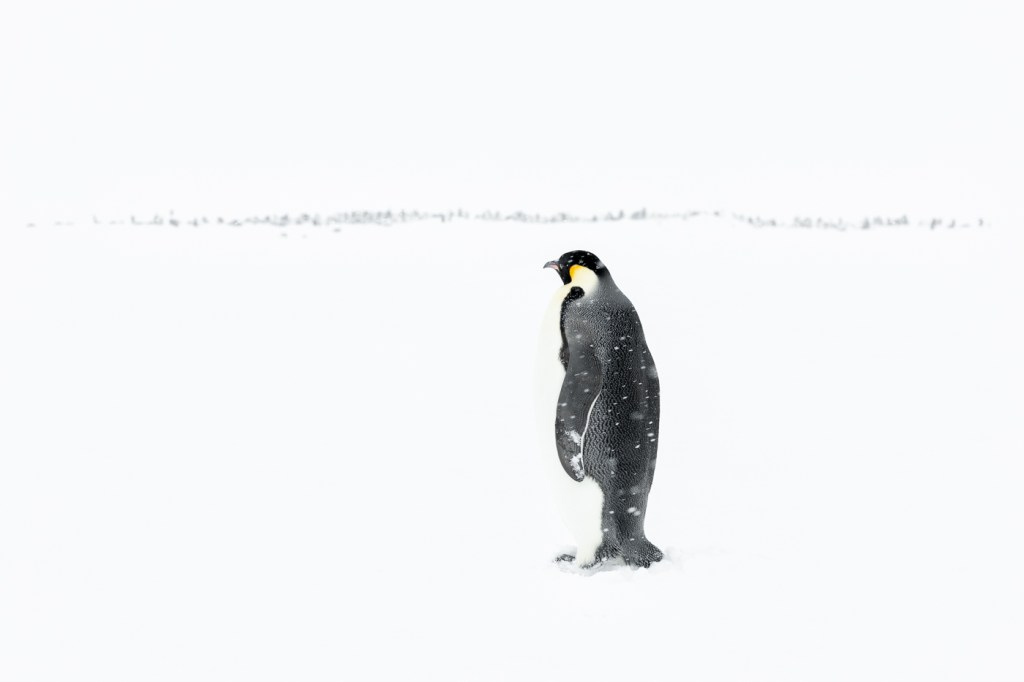
I recently returned from a two-week (early December 2024) extreme camping expedition on the frozen sea ice of Gould Bay in the Weddell Sea region of Antarctica. To the best of my knowledge, this was the first time anyone had taken Canon’s new flagship EOS R1 to Antarctica, and it was undoubtedly the first time anyone had photographed Emperor Penguins on the frozen sea ice with the camera. This expedition aimed to photograph Emperor penguins and their young chicks at the world’s most southerly colony before the colony disbanded for the season and went to sea. The timing of the expedition was early December, which proved ideal as the chicks were off their parent’s feet and highly active in the colony. This timing provided plenty of action and the ideal hostile environment to field test Canon’s new flagship camera.
I should preface this article further by stating that my experience and opinions are based on actual real-world usage. For over a week, I camped in a tent on the frozen sea ice at Gould Bay, deep in the Weddell Sea region of Antarctica. To access this location, I flew by private charter plane from Chile to Union Glacier deep in Antarctica. I then took another charter Basler aircraft another three hours out onto the frozen sea ice at Gould Bay. Here, we established a camp on the sea ice from which I would walk the roughly two-kilometre return route across the ice to the main colony daily. At this time of year, and this far south, the sun remains high, providing 24-hour daylight to photograph. Typically, I chose to photograph at night when the sun was lower, and the light was soft and ethereal. Overcast days were preferred as bright sunny days result in overly strong contrast and an extreme dynamic range that blows out the white feathers on the penguins. The sea ice of Gould Bay is about as remote and extreme a location as to be found anywhere on Earth. It was the perfect testing ground for the new flagship EOS R1. These are my opinions after a real-world expedition (not a zoo visit or Nature walk). Based on this experience with the EOS R1s on sea ice, I can confidently report that this camera is a game-changer for wildlife photography in extreme environments.
Build Quality, Durability and Ergonomics
The EOS R1 is built like a tank. Like all of Canon’s 1-series cameras, it feels as if you could hammer nails with it. Years ago, with near-frozen fingers, I dropped a 1-series from the open door of a helicopter as I was coming in to land at Fox Glacier in the South Island of New Zealand. The camera bounced across the rock-hard ice before coming to rest in a small melt pool. On landing (and after some swearing), I retrieved the camera, screwed a lens on it and went straight back to photographing the ice formations. Other than a few cosmetic knocks, the camera never missed a beat. While I have not dropped the EOS R1 from a helicopter, I accidentally dropped it on some glacial ice in Antarctica from eye level while fumbling with my phone. Other than some choice words at the time, no damage was done. While I would never advocate deliberately dropping any camera, the EOS R1 does match up with its ancestors in build quality and durability, and not much more needs to be said. It is quite literally built for a warzone. The EOS R1 is undoubtedly the toughest tool in Canon’s arsenal and the ideal camera for any unforgiving environment. I would not hesitate to take this camera anywhere for any assignment or project.
On the Antarctic sea ice, where temperatures can plummet well below freezing, the magnesium alloy body and weather-sealing performed flawlessly for the duration of the expedition. Despite heavy snow, strong winds, and exposure to saltwater spray, the cameras never faltered. Although I have yet to test them, there is no reason to believe that the EOS R1s will not perform equally well in extremely hot and humid environments. I found the new textured rubber on the EOS R1 to be a small improvement over the EOS R3 and 1DXMK3. The difference in the hand is subtle, but the camera feels solid in the hand (even with gloves on). In practical use, I didn’t notice the slight increase in weight over the EOS R3.
I have long maintained that camera ergonomics are significantly more important than megapixels. If a camera’s controls do not fall intuitively under the fingers, then the photographer is going to struggle with making quick, creative changes on the fly. When this happens, the photographer is going to have to stop thinking about the subject in front of them and start thinking about how they are going to make the required changes to the camera’s settings. In other words, they will have to work as a technician rather than an artist. In my experience, it is vital to free up your brain in the field from the limiting constraints of the camera’s controls so that you can work freely and creatively as an artist. The moment you have to stop in the field and think about what you are doing ‘technically’ with the camera is the moment you are no longer being creative. Many photographers never reach this point as they upgrade their cameras too often and never learn to master the tools they already own. Learning to work the camera’s controls with muscle memory is a critical skill that will improve your photography without bounds. One of the keys to mastering your camera’s controls and developing muscle memory of your camera’s controls is how you interact with your camera’s ergonomics.
I have large hands and find that the buttons on the EOS R1 fall naturally under my fingers without the need to stretch or reach and without having to think about where my fingers fall on the camera. Camera ergonomics are highly personal and much depends on your hand size and personal preferences for button location. In my case, the EOS R1 is perfect for my hand size, with the buttons falling naturally under my fingers. If you are considering adding an EOS R1 (or any new camera) to your equipment list, I encourage you to test drive first to see how the ergonomics work for you. By comparison, I find the buttons on both my R5 cameras to be too close together, and I struggle with these cameras as a result (especially with gloves on). It is also why I dislike Sony cameras. The buttons are too small and placed too closely together for my sized hands. The ergonomics of Sony cameras don’t work for me, making them a non-starter.
Image Quality
The R1’s 24MP full-frame sensor delivers stunning detail, dynamic range, and colour fidelity. Emperor penguins are a challenging subject, with their striking black-and-white contrasting feathers, subtle colour tones and finely detailed feathers. The R1 rendered these nuances beautifully, capturing the ultra-fine texture of their feathers and the delicate yellow gradations of their upper feathers. High ISO and IBIS performance were another standout feature, allowing me to shoot handheld when I wanted to slow shutter speed without sacrificing image quality. This expedition was not the best test for high ISO performance with 24-hour daylight and highly reflective ice and snow. It was never necessary to set the camera to anything more than ISO400. If you are interested in the high ISO performance of the R1 I encourage you to read the detailed article I wrote on how this camera performs and how it sets a new standard for high ISO performance.
Although I have no scientific data to back this up, there appears to be a purity and depth of colour to the EOS R1’s 14-bit RAW files that I have only seen before in much more expensive medium format files. I have not done direct side-by-side testing and base this opinion on decades of user experience with Canon cameras in the Polar regions. I would need to do significant side-by-side testing to verify if there is a quantifiable scientific improvement. Nevertheless, there appears to be an improvement in colour purity in the new 14 bit RAW files. YMMV.
Autofocus and Speed
One of the most critical aspects of wildlife photography is autofocus performance, where the R1 truly excels. The new AI-powered Dual Pixel CMOS AF II system can lock onto a penguin’s small black eyes against their black feathers even as they waddle across uneven ice or huddle together during low visibility and snowfall conditions. This is an extremely difficult task, as the black eye of the Emperor penguin is extremely small and virtually indistinguishable from the black feathers that surround it. With the camera set to AI Servo and eye tracking turned on, the tracking was near-flawless, even with small chicks partially obscured by adults or driving snow. Only once did I make any adjustment to the focus tracking during heavy snowfall when I found it necessary to shift the Autofcous to being more ‘locked-on’ to avoid it grabbing the falling snow. Shooting at 40 fps with the electronic shutter allowed me to capture penguins interacting together and never miss the decisive moment. 40 fps, whilst excessive in many situations, does give the photographer the ability to pick the decisive moment during the editing process. The addition of Pre-capture ensures nothing is missed. ‘I wasn’t quick enough on the shutter’ is no longer a valid excuse.
Battery Life
Battery life was another area where the R1 excelled. Even in sub-zero conditions, where battery performance typically suffers, I could shoot for three days and put more than 4000 images on my memory card before the camera called for a new battery. For a multi-day expedition on the sea ice, in freezing conditions, this battery performance was invaluable. Over the course of the entire week’s shoot on the sea ice, I only changed the battery once in each camera. That is phenomenal performance. I did shoot some video over the course of the week, but my emphasis was on stills. I expect battery life will vary with extensive movie shooting.
Movie Shooting
Although I shot small video snippets while in Antarctica, I want to be clear that I am not a videographer and am very much a stills-only photographer. Video shooting was confined to small 4K High Frame Rate snippets that I transferred to my phone on location with the Canon Camera Connect app to share with family and friends. Nevertheless, I was impressed with the video quality and features of the R1. Dedicated videographers will no doubt already know if the R1 is fit for their purpose.
Usability
The R1’s control layout and interface are intuitive and highly customisable. With gloves on, the buttons and dials were still easy to operate. However, you must choose gloves carefully to maintain the back-button focus’s touch capability. It has been my experience that many touch-sensitive gloves do not work with the Canon touch-sensitive AF button. I recommend you try any gloves before you buy. I found a pair of 66º North touch liner gloves that worked best after trialling over a dozen different types of gloves.
The new EVF provided a clear, natural viewing experience crucial for tracking fast-moving subjects. Although penguins move slowly on land, I appreciated the bright viewfinder when tracking the much faster-moving South Polar Skuas. Historically, I have always preferred optical viewfinders over electronic. The R1 is the first camera I have used where the electronic viewfinder is as good as a high-quality optical viewfinder, such as that found in the 1DX MK3. I have never been a fan of articulating LCD screens, but confess the screen was useful for shooting from low angles.
Weather-Sealed Lenses
Pairing the R1 with Canon’s RF lenses, such as the RF 14-35mm f/4, 600mm f/4 and RF 70-200mm f/2.8, provided a lightweight and weatherproof kit ideal for the Antarctic environment. The optical quality of these lenses complemented the camera’s sensor, delivering edge-to-edge sharpness, ultra-fine detail in the penguin feathers and creamy bokeh in portraits of penguins.
A Word on Megapixels
There has been much scuttlebutt online about the EOS R1’s 24-megapixel sensor being insufficient in today’s world. In my experience and line of work as a Nature and wildlife photographer, 24 megapixels is more than sufficient. Anything over 24 typically becomes a storage headache for the tens of thousands of images I shoot annually.
Throughout my career, I have frequently made and sold prints as large as 40 x 60 and 60 x 90 inches from 24-megapixel files, and not once in more than thirty years have I ever had a client say to me that they wish the print had ‘more resolution.’ Outside of bragging rights, the usage case for more than 24 megapixels is extremely small. Anything online requires no more than eight megapixels, and social media (where the majority of photographs seem to end up these days) doesn’t even need that. Making a book? 10-14 megapixels has you more than covered for all but the largest table books. To my mind, the only actual argument for more than 24 megapixels is cropping power, and typically, it has been my experience that if I need to crop that heavily, then it probably was not a very good photograph, to begin with, and I should probably move on to a different image.
It is also important to remember that the way we consume photographs is not at 100% magnification on a screen (that is how we pixel-peep them) but scaled to the resolution of the display device we are viewing them on. Twenty-four megapixels was, to my mind, the perfect choice for the Canon EOS R1 as it provides all the resolution photographers need in combination with incredible high ISO performance. For those who still feel they ‘need’ more resolution then Canon offers the EOR R5 MKII. You can have your cake and eat it, too.
In my recent testing and development of the EOS R1 (and R5 MKII) Noise Reduction pre-sets, I concluded that the EOS R1 has a realistic, workable high ISO limit of 25,600. This incredible performance would not be possible if the camera had a higher megapixel sensor. Sure, you can pixel bin a higher-resolution file to reduce the noise, but then what was the point of the extra resolution if you are just going to throw it away anyway?
While the R1 is close to perfect, there are a few areas where I’d love to see refinement. The menu system, though improved, still feels dense, and it took time to navigate certain settings. The learning curve is steep (especially if you also shoot video), and this camera will likely be intimidating to the newcomer. Additionally, the inability to directly assign pre-capture to a multi-function button is a current limitation, easily rectified by a future firmware update. My workaround was to assign pre-capture to the custom shooting mode ‘C-1’. Although this is easier to access than ‘My Menu’, it still takes more than one button press and is thus sub-optimal. Wildlife photographers will want and need to turn pre-capture on and off quickly (and frequently) and the ability to assign this function to a multi-function button would be ideal. Other than that small niggle, I found nothing wanting in the R1’s performance. It is as close to perfect and fit fur purpose as I have yet experienced for wildlife and nature photography.
Conclusion
The Canon EOS R1 is a dream camera for nature and wildlife photographers. Its rugged durability, cutting-edge autofocus and exceptional image quality (even at high ISO) make it ideally suited for extreme environments like the Polar regions. The addition of pre-capture and 40 FPS RAW ensures you will never miss the action.
This report reflects my experiences with the camera’s capabilities photographing Emperor Penguins in the unforgiving conditions of Antarctica and showcases its strengths in wildlife photography in harsh environments. In early January of next year, I will take both EOS R1 cameras to the far east and west of Mongolia on two back-to-back wildlife trips for Pallas Cat and Snow Leopard. Temperatures this time of year will be well below -20º Celsius and could dip as low as -40º. I have no doubt the EOS R1 will handle this with aplomb.
Canon has released new firmware for the EOS R1. The firmware is primarily bug fixes. New features are not expected before Q1 2025 at the earliest. Personally, I want the ability to assign pre-capture to one of the multi-function buttons (hopefully early next year). Update includes:
The Wi-Fi connection status is now identifiable by the colour of the [FTP Transfer Icon].
Adds [Protect Images] and [Rating] during FTP Transfer.
Adds the ability to change [Custom Shooting Mode] while writing images to the media (BUSY).
Fixes an issue in which the camera may become inoperable if a lens that does not communicate with the camera is attached when repeatedly shooting while using HDMI output.
Fixes an issue in which the camera may become inoperable if an image is cropped while other images are being transferred to an FTP server.
Fixes an issue in which Err70 may occur when using an application software such as Camera Connect, and the load on the smartphone increases.
Fixes an issue in which image stabilization may become unstable in movie mode when panning diagonally while using some stabilization rigs (such as monopod or handheld rigs).
Fixes an issue in which all images may not be copied when copying multiple selected images in the camera.
Fixes an issue in which another manufacturer devices (such as strobe or remote camera trigger) may work during pre-continuous shooting.
Fixes an issue that may, immediately after shooting, cause the screen to take a long time to turn off when using a button that has been assigned the “Screen off” function.
Fixes an issue in which Look File settings may apply to multiple custom picture files.
Fixes an issue in which the AF frame movement may not be smooth when several shooting information items are displayed and the multi-controller is operated.
Implements a fix to include custom pictures when saving camera settings.
Improves operation stability during network communication.
Over the last few years, I have created ISO Specific and Adaptive Noise Reduction pre-sets for the Canon EOS 1DXMK3, Canon EOS R3 and Canon EOS R5 MKII. These time-saving pre-sets have since been downloaded, tested and adopted by many other Canon 1DXMK3, R3 and 5D MKII users as their working defaults. The feedback we have received to date on our work in this area has been fantastic and ongoing – Thank you.
I received the new Canon flagship EOS R1 about a week ago and have been very busy analysing its RAW files in great detail to create a set of ISO Specific Noise Reduction Pre-sets specific to the R1. After spending most of the last few days locked in my studio, staring at my computer screens and analysing the files in great detail, I have created optimized noise pre-sets for the Canon EOS R1. If you would like to take advantage of these finished and optimized pre-sets (including the test RAW files), you can purchase them through my store, Melrakki Publishing, HERE, for just $20. These pre-sets represent days of work to complete, so we ask that you please support this work by purchasing them if you want to take advantage of them.
If you are only interested in how the Canon EOS R1 stacks up and performs, then I will save you the long read – here is the conclusion: The EOS R1 significantly ups the game with performance that demonstrably exceeds the EOS R3 and EOS 1DX MK3. When comparing EOS R1 high ISO files against either the EOS 1DX MK3 or the EOS R3, it is clear that Canon has made forward strides in high-ISO sensor development. Directly comparing ISO 12,800, 25,600, 51,200 and 102,400 on the EOS R1 to either the EOS R3 or EOS 1DX MK3 shows that the sensor in the EOS R1 retains more fine textural detail at these high ISO settings. Fine hairs and ultra-fine detail are clearer and more accurately rendered by the EOS R1. The grain structure is also more organic and ‘film-like’, and it appears less ‘digital’ than previously tested cameras. In addition, the EOS R1 files are more malleable and more resilient to abuse of the Lightroom Noise Reduction sliders while producing a more natural result. Extreme settings of these sliders render more pleasing and preferred results than either the EOS R3 or EOS 1DX MK3 sensors. The EOS R1 is also the first sensor tested to facilitate a workable, high ISO of 25,600 without losing detail in real-world RAW files. Based on my testing experience, the EOS R1 represents the very pinnacle of Canon’s digital sensors, with high ISO performance that outperforms any other sensor tested to date. I have no hesitation in personally shooting the EOS R1 at ISO settings up to and including ISO 25,600. As long as your files are well exposed, the EOS R1 can render superb results that retain ultra-fine detail even at this extreme ISO.
I previously included some critical history of creating these pre-sets in a detailed post HERE. Much of this information is again included below as it is highly relevant to how these pre-sets were optimised. Before embarking on this journey, I reached out to a close colleague and engineer at Adobe who is heavily involved in the coding of Lightroom and who shed some fantastic additional light on what some of the sliders are doing ‘under the hood’ before I began developing these presets. I have been using Lightroom since its beta days and have a better-than-average grasp and understanding of what is happening under the hood with most sliders. However, I was able to learn a thing or two that has helped me significantly optimise these pre-sets, and I want to share this information as it is critical to understanding how to set the Noise sliders properly and how they have been applied in the pre-sets I have created. Even if you don’t own a Canon EOS R1, R5 MK2, 1DXMK3 or R3, this information will be relevant and valuable to you. Importantly, this information has been applied to produce these presets, so when you purchase and install these specific noise presets, you can rest assured you are getting the best possible result.
Detail Panel Settings: Before I get into the methodology, I want to make the critical point that both the Detail panel sharpness and noise reduction sliders in Lightroom are interactive. Adjusting one slider is not enough in most instances, and significant back-and-forth play between the sliders is required to set them optimally.
Methodology: Over the last few days, I have done extensive testing and analysis in creating these ISO-specific noise reduction pre-sets for the Canon EOS R1. To make them, I photographed a large X-Rite Color Checker (A4 video version) in a D6500 light-controlled graphic light workstation with the Canon EOS R1 and an RF 85mm f1.2 L series lens at f5.6 at every single ISO stop from 50 to 102,400. Technically, you can push the EOS R1 to H1 ISO 204,800, and the ultra-extreme H2 to ISO 409,600, but RAW files at these extreme ISO settings break down so badly that it is little more than a marketing gimmick. Thankfully, this extreme ISO range is disabled by default in the EOS R1, and that is how I suggest you leave it – permanently. For the curious amongst you, there is no saving ISO 409,600. Even ISO 102,400 should be used as an absolute last resort. Whilst ISO 50 is an option on the Canon EOS R1 and has no noise of consequence, it does have a more limited dynamic range (approximately one stop less) than ISO100 and, as such, is not recommended. You are better off using a Neutral Density filter if you need to shoot at ISO lower than 100. All of that said, the pre-sets do include Noise Reduction for the the full ISO range from ISO 50 all the way to ISO 409,600.
1/3rd stops are ‘push’ or ‘pull’ ISO stops that use in camera software ‘under the hood’ to adjust the exposure +/- 1/3rd of a stop accordingly. As such, I never use 1/3rd stop ISO increments and have my EOS R1 cameras set to full stop ISO only. I also find that when I am shooting in the field, I prefer one click to go from ISO 400 to 800, for example, instead of having to make multiple clicks to gain a stop of light. Noise Reduction pre-sets are included for 1/3rd stop increments for those who like to shoot this way or who prefer to shoot Auto ISO.
Aperture priority was used meter as read (no exposure compensation), and only the ISO and shutter speed were varied. The X-Rite Color Checker was used as it enabled me to carefully monitor and check for noise in the shadows and because I wanted to be able to check for individual colour shifts, mottling, speckling and bleeding at each specific ISO in very specific colours. It should be said that any differences in colour shift would, in all likelihood, not be visible in normal photographic scenes, but using the X-Rite Colour Checker makes it far easier to visually detect shifts or bleed in colour and thus makes it far easier to apply optimal noise reduction in Lightroom.
The RAW files were imported into Lightroom with the Adobe Color Profile and carefully analysed at 100%, 200% 400% and 800% magnification. Unlike sharpening, which must be gauged at 1:1 100% magnification, Noise Reduction requires additional zooming. With some noise control sliders, it is necessary to zoom in significantly to see the differences as you adjust the sliders. I spent the better part of three days just staring at these RAW files at different magnifications and visually comparing them side by side as I tweaked the settings in the detail panel for each ISO. The goal was never to make ISO 102,400 look as good as ISO 100 (that simply is not possible); instead, ISO 100 was used as a reference point for all other ISO RAW files to be compared. Then, the sliders were adjusted for each full stop of ISO difference. In other words, the goal was to make ISO 200 look as close as possible to ISO100, ISO 400 as close as possible to ISO200, etc., all the way up to making ISO102,400 look as close as possible to ISO 51,200. Once this was done and checked I then went back and compared the results two full ISO stops difference and then three full stops difference and tweaked further. Finally, I rechecked my settings and results over three days to satisfy myself that I could not optimise them further. It is worth noting that ISO 102,400 and above are the most difficult ISO ranges to make look ‘good’. Hence, they have the highest degree of tweaking in the pre-set. Even with this optimised pre-set for ISO 102,400, I strongly encourage you to avoid this ISO and the ultra-extreme H1 and H2 ISO settings at all costs. In real practical terms, I recommend setting a virtual ceiling of ISO 25,600. Exceed 25,600, and fine details begins to get lost. At ISO 51,200, fine detail and texture continue to disappear, although it’s arguable if this will be visible in well-exposed real-world captures. In actual practical every day use, I try not to exceed ISO 12,800 with the EOS R1 and prefer to shoot at ISO400 as my baseline. I will happily go to ISO 25,600 before I start worrying too much about noise, with ISO 51,200 being my absolute ceiling. It is worth noting that all of the above is contingent upon a well-exposed RAW file. If you underexpose your file the results will likely be quite different.
I used two high-end displays to visually analyze the RAW files: the BenQ SW272U, which I reviewed HERE, and an Eizo Colour Edge CG2700X. Both displays are high-end Adobe RGB, 4K, and were optimally calibrated to D6500K with a setting of 80 candelas, which is appropriate for the light levels in my viewing studio. I utilised two different monitors as I discovered that different displays render slightly differently, and it was necessary to optimise and average across the different monitors. It should be noted that if you are using a laptop screen, you are at a very significant disadvantage in rendering colour and analysing noise. In fact, making any sort of colour-critical decisions on a laptop display is a terrible idea. If you do not own a high-quality photographic display and care about your images, this should be your next purchase.
Noise Reduction and ETTR: When setting the sliders in the Detail panel for sharpness and noise reduction I erred on the side of caution and was very deliberately cautious and judicious in the amount being applied. The primary reason for this is I did not want overly aggressive noise reduction in these pre-sets. Since exposing to the right (ETTR) is optimal in the field (without clipping the highlights), tweaking the exposure down in Lightroom during post-production results in lower levels of noise than under-exposing or even exposing ‘meter as read’. In other words, the pre-sets are optimised for RAW files that were optimally exposed in the field. If you are applying these pre-sets to an under-exposed photograph that you are ‘brightening’ considerably in Lightroom, you may well need to apply additional noise reduction. Thus, the pre-sets will work optimally when you have exposed optimally in the field.
Problem Files: If you have a particularly noisy and problematic file, you may be better off using a third-party Noise Reduction program in addition to the ISO-specific pre-sets I have created. I am currently using both Lightroom AI Denoise and Topaz De-Noise for any file that is particularly problematic in addition to the ISO-specific pre-set. Think of the ISO-specific pre-set as a starting point for problem files. Don’t try to apply them to a file you have already processed and expect a magical result.
Camera Profiles: Adobe encountered some difficulties building camera-specific profiles for Canon models (including the EOS 1DXMK3 and R series cameras) because of the switch to the new CR3 file format. Adobe has since resolved this issue and resumed offering camera-specific profiles. For these pre-sets for the Canon EOS R1, I used the standard default Adobe Color profile. I recommend not getting too hung up on Camera profiles as changing profiles may improve the look of specific files in certain situations, but once you start twiddling the processing dials in Lightroom, all bets are off as to which may give a better result. Since ‘Adobe Color’ is the default, it made sense to use this as the baseline for the Noise Reduction pre-sets.
Sharpening Amount: The pre-sets vary from ISO to ISO, and some of the ISO pre-sets include a component of Sharpening above the default setting of 40. Since Sharpening and Noise Reduction are interactive and affect each other (that is why they appear together in the Detail panel of Lightroom), it is necessary at some higher ISO settings to add additional sharpening to counter the ‘digital smoothing’ of the RAW file that results from higher amounts of Noise Reduction. This additional sharpening kicks in from ISO1600 in the pre-sets for the EOS R1. The sharpening amounts applied in the pre-sets are a cautious baseline. In other words, where sharpening has been applied at a given ISO pre-set it is only enough to counter the digital smoothing applied by the noise reduction algorithm. You will still need to add additional capture sharpening to your file. The amount of additional capture sharpening you will need to apply will vary depending on the quality of your lens, the sharpness of the capture and the atmospheric conditions at the time of capture.
Sharpening Radius: None of the pre-sets alter the Radius since the correct setting will vary depending on your particular capture. Photographs with a lot of high-frequency information will generally want a lower Radius (less than 1), and photographs with mostly low-frequency information (think portraits) will necessitate a higher Radius. The default setting of 1 is a good general setting and, thus, is not touched in the pre-sets.
Sharpening Detail: Sharpening detail is quite a complicated slider requiring more explanation. When adjusted to the left, toward 0, the Detail Slider applies halo suppression, which limits how strong the halos are in your number settings. Moving the slider past 25 (the default) causes the slider to change its behaviour and apply a type of deconvolution sharpening similar to the de-blur tool in Photoshop. Deconvolution sharpening attempts to de-blur an image based on what type of blur it detects in an image. The thing to keep in mind is that excessive use of the sharpening detail slider will substantially increase the sharpening of the noise. Generally speaking, if you set the amount and radius correctly, there is little need to change the detail slider, and the default setting of 25 is appropriate.
Sharpening Masking: None of the ISO-specific pre-sets include any masking component. Since masking is image-specific, you will need to apply this based on the requirements of your specific image.
Luminance Noise Reduction: Lightroom does not apply Luminance Noise Reduction by default, so the pre-sets mainly optimise the Luminance, Detail, and Contrast sliders. No luminance noise reduction is applied below ISO 800 in the pre-sets. It simply is not required in Canon EOS R1 files. Even ISO1600 pre-sets only have a very low setting for luminance noise reduction, and it could be argued that this is unnecessary in some cases. Visible differences in grain structure are only discernable with RAW test images at high magnification (200%, 400% and 800%). Nevertheless, a small amount of luminance noise reduction is beneficial in ISO1600 files when correctly exposed. Underexposed files may require additional noise reduction.
A note on Grain Structure: It can be tempting to apply additional Luminance Noise Reduction to high ISO files when viewed at 200%, 400% or 800% to try and make high ISO files look as smooth as low ISO files. The problem with this approach is it can lead to artificial, non-organic looking grain structure when viewed at a more nominal 100%. Back-and-forth testing led me to deduce that the best ‘looking’ grain structure is obtained by making Luminance Noise Reduction adjustments at 100% magnification only.
Luminance Noise Detail: This control sets the noise threshold. Dragging the slider to the right will preserve more detail; however, it does cause some noise to be incorrectly detected as detail and, therefore, will not be ‘smoothed’. Decreasing the slider will increase ‘smoothing’ but cause some details to be incorrectly detected as noise and smoothed out. The Luminance Noise Detail slider is only activated when some Luminance Noise reduction is applied. The default value once activated is 50, and setting this slider optimally for high ISO images is a bit of a balancing act. Luminance Detail kicks in at ISO12800 in the pre-sets for the EOS R1 (it kicks in at ISO 6400 for the Canon EOS 1DX MK3 and EOS R3). If you are shooting at 1/3rd stops the Luminance Noise Detail kicks in at ISO 10,000. The Canon EOS R1 sensor behaves very differently to any of the previously tested cameras (Canon EOS 1DX MK3, Canon EOS R3 and Canon EOS R5 MKII). Unlike these previous cameras, ISO settings above ISO 25,600 on the EOS R1 do not require a reduction in the luminance noise detail slider to be applied to reduce noise being incorrectly detected as detail (except for the H2 ISO 409,600). The EOS R1 sensor is the best I have reviewed in this regard. Put in plain English, it produces a much cleaner file than any of the other cameras. A lot of testing and care went into the amount applied in the pre-sets. This is where a lot of high magnification zooming (up to 800%) was used to discern differences in the settings.
Luminance Contrast: Like the Luminance Noise Detail slider, the Luminance Contrast slider is only activated when some Luminance Noise reduction is applied. Dragging this slider to the right preserves image texture and contrast but results in the potential for mottling in high ISO images and re-introducing noise. Leaving it at the default setting of 0 helps with fine-grained, smooth results. Like the Luminance Noise Detail slider, setting this slider optimally at higher ISO images is a balancing act between adding contrast, enhancing surface texture and avoiding mottling and more noise. Luminance Contrast kicks in at ISO25600 in the pre-sets for the EOS R1 (or ISO 20,000 if you are shooting 1/3rd stops). Again, a lot of testing and a lot of care went into the amount applied in the pre-sets. It should be noted that the Canon EOS R1 sensor behaves better than any previously reviewed sensor. It is necessary to make extreme adjustments to the Luminance Contrast slider to provoke mottling in high ISO images.
Colour Noise Reduction: Lightroom does apply a default Color noise reduction of ’25’. What is critical to understand is that the default of 25 for RAW files is a baseline of colour noise reduction. You should think of the value of 25 not in an absolute sense but in an ISO-normalised sense. What this means is that for a very clean image, like an ISO 100 RAW file from the Canon EOS R1, the Colour Noise Reduction slider, in general, is doing very little because the image is so clean, to begin with. On an ISO 25600 image from the same camera, though, Color Noise Reduction of 25 is going to do quite a bit more. In other words, how much work goes on under the hood for “Color Noise reduction = 25” depends both on the camera model and the ISO because Adobe calibrate each camera model and ISO, and the Color Noise Reduction slider is “aware” of this. This means that even on a very clean image like ISO 100 from a Canon EOS R1, you don’t have to worry about damaging the image quality by leaving Color Noise Reduction at 25, because Colour Noise Reduction will do very little in this case. Since the Colour Noise slider at its default setting of 25 is applying adaptive noise reduction that is both camera and ISO-specific, it is not altered in any of the pre-sets from its default setting. I did spend quite a lot of time trying to tweak this slider at various ISO settings but I came to the visual conclusion that the results are optimal at the default setting of 25 (Adobe have done excellent work in this area). Applying more than 25 very quickly results in colour bleeding that is sub-optimal. Be very careful if you start tweaking this slider.
Colour Detail: The colour detail slider is most useful for extremely noisy images. It allows you to refine colour noise reduction for thin, detailed colour edges. In essence, at very high settings of 75+, Lightroom tries to retain colour edges but at the expense of colour speckles. At lower settings, the slider works to suppress colour speckles, but thin features may become desaturated (colour bleeding). In order to see the effect, it is really necessary to zoom in at least 200% or 400%. Colour Detail kicks in from ISO 25,600 in the pre-sets (or ISO 20,000 if you are shooting 1/3rd stops). Again, it is necessary to make fairly extreme adjustments to the sliders at high magnification to actually provoke speckles in the Canon EOS R1 files.
ColourSmoothness: The colour smoothness slider defaults at 50, and at moderate settings below 50, it can be used to ‘smooth’ colour. Above 50, it can be used to suppress colour blotching or mottling. At very high settings, it may cause some desaturation of colour at the edges, so a lot of care needs to be taken when setting this slider. Colour smoothing kicks in only from ISO 25,600 in the pre-sets (or ISO 20,000 if you are shooting 1/3rd stops).
Lens Corrections: No lens corrections are applied in any of the ISO-specific noise pre-sets.
Canon EOS R1 Comments: With the ISO-specific Adaptive noise reduction pre-sets applied between ISO 50 and ISO 3200, there is no appreciable difference in noise in real-world RAW files – they are close enough to be considered identical at 100% magnification. By ISO 6400, only the tiniest minute surface texture, discernible at 400% or more magnification, is just starting to disappear (You would never ever notice this in real-world captures and have to really look for it at extreme magnification). At 100% there is no discernable difference between ISO 3200 and ISO6400. By ISO 12800, ultra-fine surface textures are just starting to disappear from the RAW file when viewed at 200% or more on-screen (again, you will never notice this in real-world captures). At ISO 25,600, the finest surface textures disappear, and ultra-minute fine detail is also starting to disappear. Fine hairs are still visible and look good, but the finest ultra-minute detail is now obscured. Again, you will not notice this in real-world RAW captures (You really have to look for it in a test image at 200% or more magnification). Nevertheless, my recommendation is that ISO 25,600 is a realistic workable limit. Above ISO 25,600 both texture and fine detail continue to disappear as the ISO increases. ISO 51,200 has a noticeable loss in ultra-fine detail compared to ISO 25,600. At ISO 51,200 the finest surface textures are gone. The smallest fine hairs are no longer visible and are lost in the increased grain structure (which remains organic). Toward the top end at ISO 102,400 we have lost most surface texture and most fine hair detail. ISO 102,400 is an absolute last resort and is to be avoided at all costs. I strongly recommend you leave ISO 102,400 disabled and set your absolute ceiling at ISO 51,200 with a realistic limit of ISO 25,600. The pre-sets do their best to make ISO 102,400 look as good as possible, but in reality, there is no helping ISO 102,400 and above.
Side Note: Canon EOS R1 vs. EOS R5 MK2 vs. Canon EOS R3 vs. Canon EOS 1DXMK3 Comments: RAW files from the Canon EOS R1, R5MK2, EOS R3 and the Canon EOS 1DXMK3 were compared and analysed at 100%, 200%, 400% and 800% magnification side-by-side in Lightroom. Directly comparing the RAW files shows no discernable or appreciable difference in noise between ISO 50 and ISO 51,200 for the EOS R3 and the EOS 1DXMK3. Side by side, it is impossible to pick one from the other in a blind test. At ISO 102,400, the Canon 1DXMK3 has a very slight advantage in grain structure, although it is likely this difference would never be visible in real-world photographs. What this demonstrates is that noise levels more or less plateaued in digital sensors of this 24-megapixel resolution when the R3 was released. Despite the Canon EOS R3 having a BSI sensor with a few more pixels, there is no real advantage in noise over the sensor in the Canon EOS 1DXMK3. The Canon EOS R5 MK2 has more noise than both the Canon EOS R3 and EOS 1DXMK3 because of its higher pixel density. It should be noted that the performance of the EOS R5MK2 is exceptional for a camera with 45 megapixels. However, it is not in the same league as either the EOS R3 or the EOS 1DX MK3 (or the EOS R1 – see below) when it comes to high ISO noise performance.
The EOS R1 significantly ups the game with performance that demonstrably exceeds the EOS R3 and EOS 1DX MK3. When comparing EOS R1 high ISO files against either the EOS 1DX MK3 or the EOS R3, it is clear that Canon has made forward strides in high-ISO sensor development. Directly comparing ISO 12,800, 25,600, 51,200 and 102,400 on the EOS R1 to either the EOS R3 or EOS 1DX MK3 shows that the sensor in the EOS R1 retains more fine textural detail at these high ISO settings. Fine hairs and ultra-fine detail are clearer and more accurately rendered by the EOS R1. The grain structure is also more organic and ‘film-like’, and it appears less ‘digital’ than previously tested cameras. In addition, the EOS R1 files are more malleable and more resilient to abuse of the Lightroom Noise Reduction sliders while producing a more natural result. Extreme settings of these sliders render more pleasing and preferred results than either the EOS R3 or EOS 1DX MK3 sensors. The EOS R1 is also the first sensor tested to facilitate a workable, high ISO of 25,600 without losing detail in real-world RAW files. Based on my testing experience, the EOS R1 represents the very pinnacle of Canon’s digital sensors, with high ISO performance that outperforms any other sensor tested to date. I have no hesitation in personally shooting the EOS R1 at ISO settings up to and including ISO 25,600. As long as your files are well exposed, the EOS R1 can render superb results that retain ultra-fine detail even at this extreme ISO.
What About Lightroom AI Noise Reduction?: Lightroom offers the capability to apply AI Noise Reduction in the ‘Develop module’. Be aware that the application of AI Noise Reduction overrides any Noise Reduction preset you may have used. If you (manually or otherwise via preset) adjust the Noise Reduction sliders prior to running Denoise, those slider values will be reset to zero on the new DNG, and the effect of those sliders will not be baked into the DNG. In other words, the new DNG will have only AI Denoise applied and no manual/legacy NR applied. So, it’s as if you’re starting fresh. The reason for this behaviour is that AI Denoise was trained and designed to be used alone, without any of the manual Noise Reduction applied. This said, Adobe recognizes that in some cases, even with AI Denoise, there may be some residual noise that a photographer may wish to clean up manually afterwards, so the manual Noise Reduction controls remain available to use “on top of” AI Denoise.
So why apply a Noise Reduction Pre-set?: Simply put, the noise reduction preset can be applied automatically upon import into Lightroom. Adobe’s AI Noise Reduction is extremely processor intensive and can take over a minute to perform on a single image, depending on your computer’s processing power. The Noise Reduction Pre-set is more or less instant on import and can be applied to all your photographs automatically without the need to render out a new DNG file. You can then apply Lightroom’s AI noise reduction on select images if required.
Demonstrable Visual Results: In case you are wondering why I have not dotted this long post with visual examples comparing various ISO’s pre and post-ISO specific noise pre-set, it is because the images, once converted to jpeg and resized for the web, are not representative of the RAW file results. Conversion to jpeg and downsizing to something suitable for the web has a very significant effect on the visual noise in an image. Downsizing removes visible noise and thus distorts the visual results significantly. However, I have included a copy of all the RAW files I photographed of the X-Rite Color Checker in the creation of these pre-sets from ISO 50 to ISO 409,600 so you can visually see the differences yourself. Just import the RAW files into Lightroom, apply the pre-sets and do a before/after comparison. You may need to zoom in to 200%, 400% or even 800% to see differences.
Conclusion: Creating these ISO-specific noise reduction pre-sets for the Canon EOS R1 was a worthwhile investment in time and energy. It has been very educational (although time-consuming), and It should considerably speed up any workflow for someone that is shooting with this camera as the pre-sets can be applied on import. As they are ISO specific, Lightroom will then apply them correctly to each different ISO file you import. Since significant time and effort went into optimising these pre-sets, you will not have to worry about whether you are setting your noise reduction optimally. Just make sure you expose optimally in the field, apply the pre-set on import into Lightroom, and you can then focus on processing your photograph. Just remember, you still need to apply an appropriate level of capture sharpening for your RAW file in addition to the ISO-specific sharpening that may be applied in the pre-set. Happy processing!